CDD FAQ - Assurance AMLHub Frequently Asked
Questions
CDD FAQ - Assurance AMLHub Frequently Asked
Questions
Creating an assurance period can be done through the ‘CDD Deal Assurance’ section of the
AMLHub desktop.
- Click on the "+ Period" button, found in the top left-hand corner of the screen.
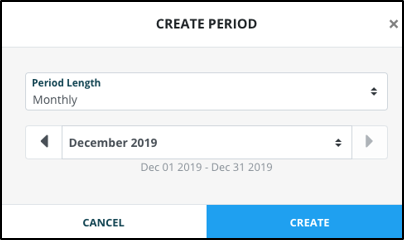
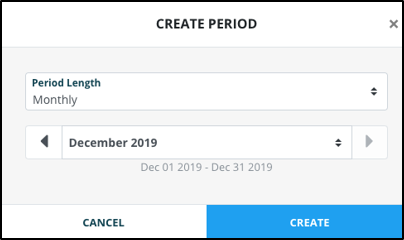
- The following pop-up window will appear.
- If you would like to select a different period length, click on the ‘period length’ field. Select from the drop-down menu the new period length you would like to be applied to this assurance period.
- If you would like to select a different date for this assurance period to start from, click on the field stating the current month and year. Select from the drop-down menu the new date you would like this assurance period to start from.
- Click ‘create’.
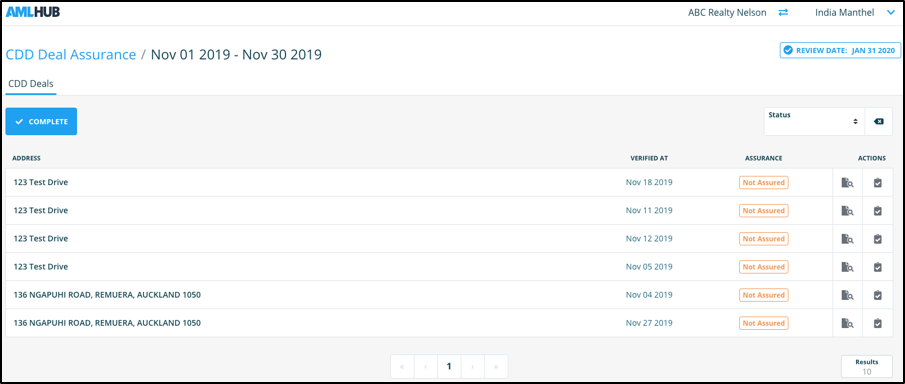
- The assurance period will appear created, will all deals verified in this period listed
Where you deal commonly with the same representative, you will be able to re-use the CDD information across multiple deals which would make the process more efficient.
Deleting an incomplete assurance period can be done through the ‘CDD Deal Assurance’ section of the AMLHub desktop.
- From the list of assurance periods displayed, click on the "Trash Can" icon. This icon is found in the ‘Actions’ field, to the right of the assurance period date.
- The following pop-up window will appear. Click ‘delete’.
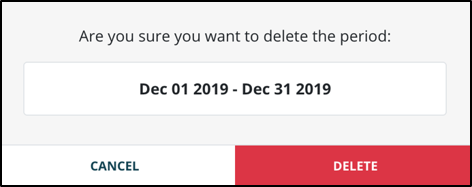
Please note: assurance periods cannot be deleted if they have been manually ‘completed’.
Assuring a deal can be done through the ‘CDD Deal Assurance’ section of the AMLHub desktop.
- Click on the period you would like to complete assurance for.
- Click on the "Page with maginfying glass" icon, found to the right of the deal you would like to assure.
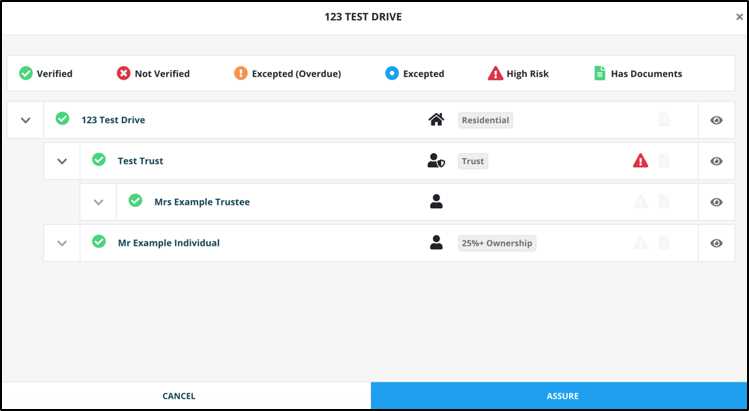
- You will be re-directed to a pop-up window displaying the deal’s structure.
- From this window, review the deal’s details, CDD etc. and take note of any issues.
- When the review is complete, click ‘assure’.
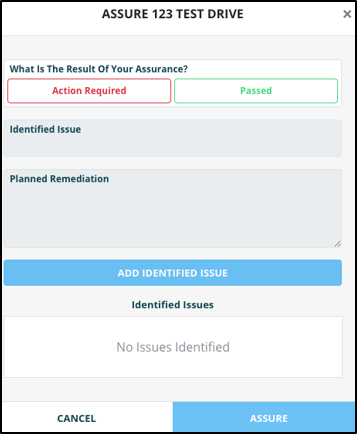
- The following pop-up window will appear.
Passing Assurance
- From the pop-up window displayed above, click "Passed"
- Click ‘assure’
- The deal will subsequently be displayed in this assurance period with a status of ‘passed’. This status is noted under the ‘Assurance’ field, found to the right of the deal name/address.
Action Required
- Enter a name for the identified issue.
- Describe what remediation should be implemented for this identified issue in the ‘planned remediation’ field.
- Click "Add Identified Issue"
- The issue will then be displayed under the ‘identified issues’ field.
- Repeat this process for any additional issues identified during your review of the deal.
Completing an assurance period can be done through the ‘CDD Deal Assurance’ section of the AMLHub desktop.
- Click on the relevant period you would like to complete assurance for.
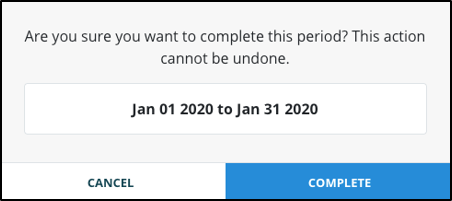
- Click on the "Complete" button.
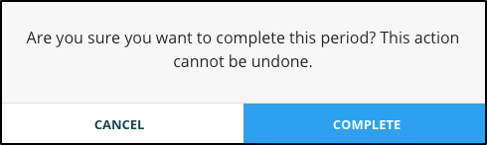
- The following pop-up window will appear. Click ‘complete’.
- The assurance period will subsequently be displayed under the ‘Assurance Periods’ list with a status of completed. This status is noted under the ‘Completed’ field, found to the right of the assurance period.
Creating an assurance period can be done through the ‘Staff Vetting Assurance’ section of the AMLHub desktop.
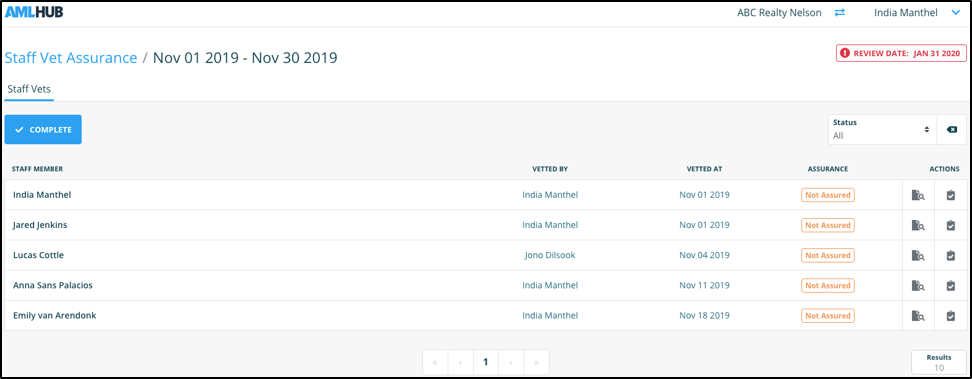
Deleting an incomplete assurance period can be done through the ‘Staff Vetting Assurance’ section of the AMLHub desktop.
- From the list of assurance periods displayed, click on this icon. This icon is found in the ‘Actions’ field, to the right of the assurance period date.
- The following pop-up window will appear. Click ‘delete’.
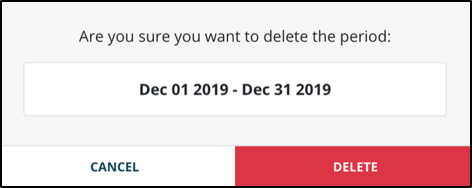
Please note: assurance periods cannot be deleted if they have been manually ‘completed’.
Assuring a staff member can be done through the ‘Staff Vetting Assurance’ section of the AMLHub desktop.
- Click on the period you would like to complete assurance for.
- Click on the "page with magnifying glass" icon, found to the right of the staff member you would like to assure.
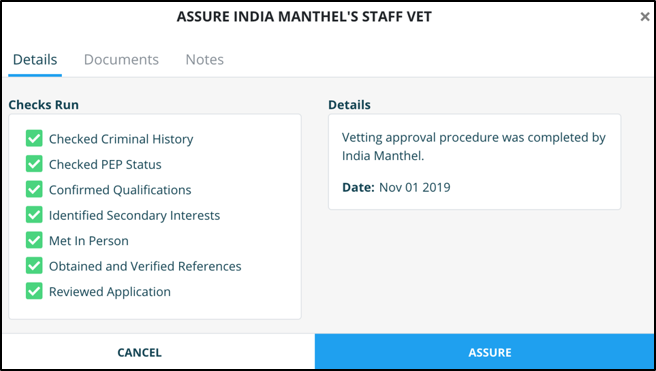
- You will be re-directed to a pop-up window displaying the staff member’s vetting records.
- Review the staff member’s vetting records and take note of any issues found.
- When review of these records has been completed, click ‘assure’.
- The following pop-up window will appear.
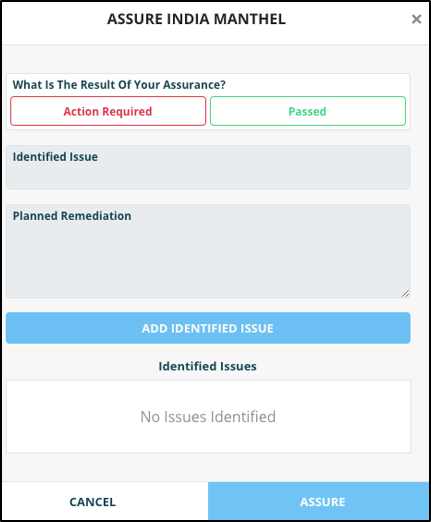
- From the pop-up window displayed above, click "Passed"
- Click ‘assure’.
- The staff member will subsequently be displayed in this assurance period with a status of ‘passed’. This status is noted under the ‘Assurance’ field, found to the right of the staff member’s name.
- From the pop-up window displayed above, click "Action Required"
- You will then need to add any issues identified during your review of the staff member’s vetting records.
- Enter a name for the identified issue.
- Describe what remediation should be implemented for this identified issue in the ‘planned remediation’ field.
- Click "Add Identified Issue
- The issue will then be displayed under the ‘identified issues’ field.
- Repeat this process for any additional issues identified during your review of the staff member’s vetting records.
- When all issues have been identified, click ‘assure’.
- The staff member will subsequently be displayed in this assurance period with a status of ‘passed’. This status is noted under the ‘Assurance’ field, found to the right of the staff member’s name.
Passing Assurance
Action Required
Completing an assurance period can be done through the ‘Staff Vetting Assurance’ section of the AMLHub desktop.
- Click on the relevant period you would like to complete assurance for.
- Click on the "Complete" button.
- The following pop-up window will appear. Click ‘complete’.
- The assurance period will subsequently be displayed under the ‘Assurance Periods’ list with a status of completed. This status is noted under the ‘Completed’ field, found to the right of the assurance period.